




Is Your Monitor Too High? The Ergonomic Setup Mistake Most Gamers Make
After upgrading your gaming chair, keyboard, and mouse, it's easy to assume your setup is complete. Yet one of the biggest causes of neck and shoulder discomfort often sits right in front of you—your monitor.
Many gamers believe that raising the screen creates a more "professional" setup. In reality, placing your monitor too high can force your neck into an awkward position for hours at a time, leading to muscle fatigue, headaches, and poor posture.
If you've been wondering about the correct monitor height for gaming, the answer is simpler than you might think. A properly positioned monitor helps your eyes, neck, shoulders, and back work together naturally, making long gaming sessions much more comfortable.
Quick Answer
The ideal monitor height for gaming places the top edge of your screen at or slightly below eye level. When sitting upright with your shoulders relaxed, your eyes should naturally land about one-third of the way down from the top of the display. This allows your neck to remain in a neutral position while reducing strain during extended gaming sessions.
Why Monitor Height Matters More Than You Think
Most gamers focus on buying an ergonomic chair but overlook the monitor itself. Even the most supportive chair can't compensate for constantly looking upward. Based on common questions from long-session gamers and remote workers, neck discomfort often continues even after upgrading to a premium chair because the monitor remains incorrectly positioned. Your chair supports your body, but your monitor determines where your head spends most of its time.
When the monitor sits too high, you may experience:
- Neck stiffness after gaming
- Tight shoulders
- Upper back fatigue
- Frequent headaches
- Difficulty maintaining good posture
These symptoms become even more noticeable for gamers who spend six or more hours at their desk.
Signs Your Monitor Is Too High
You don't need specialized equipment to identify the problem. Your setup may need adjustment if you notice any of these habits:
- Your chin tilts upward while gaming.
- Your neck feels tight after long sessions.
- You frequently lean back to view the screen.
- You experience soreness between your shoulder blades.
- You feel better after standing up and stretching.
Small posture issues repeated over several hours create significant muscle fatigue.
The Ideal Monitor Height for Gaming
A comfortable monitor position should allow you to look slightly downward instead of straight ahead or upward.
| Setup Element | Recommended Position | Why It Helps |
| Top of monitor | At or slightly below eye level | Keeps neck neutral |
| Viewing angle | Eyes naturally look downward 10–20° | Reduces cervical strain |
| Viewing distance | About an arm's length away | Minimizes eye fatigue |
| Monitor tilt | Slight upward tilt (10–15°) | Maintains comfortable viewing |
Remember that these are starting points. Your height, desk, chair, and monitor size all influence the final position.
Large Monitors Require Different Positioning
Many gamers now use 32-inch or ultrawide displays. Simply raising a larger monitor to eye level often creates another ergonomic problem.
Instead, position the center of the screen comfortably within your natural field of view. Since larger displays occupy more vertical space, they may need to sit slightly lower than smaller monitors.
The goal isn't to center the monitor at eye level—it's to avoid excessive upward head movement.
Your Chair and Monitor Should Work Together
A gaming chair and monitor should function as one ergonomic system. If your chair encourages proper posture but your monitor is too high, your neck will still compensate. Likewise, a perfectly positioned monitor cannot fully overcome a chair that lacks lumbar support.
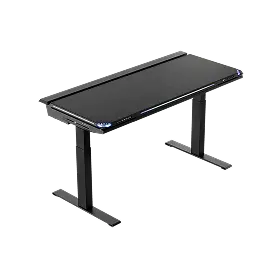
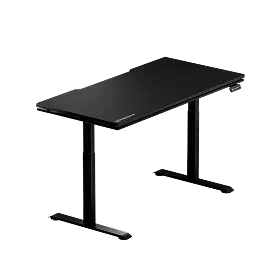
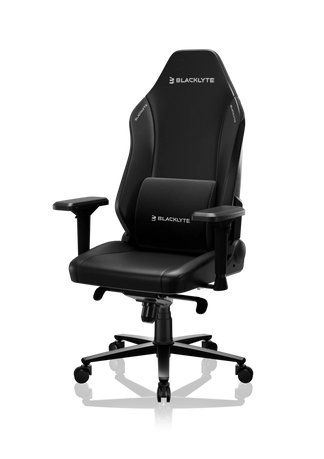
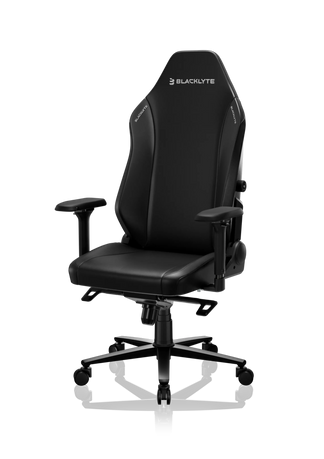
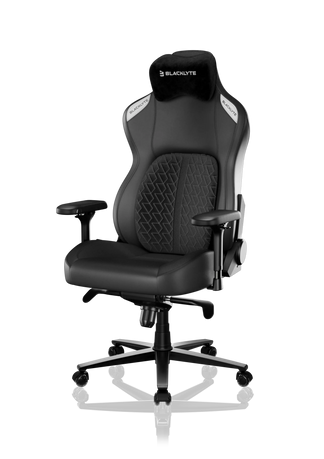
This is why many gamers are moving toward complete ergonomic work-and-play setups instead of upgrading individual pieces. A supportive gaming chair with adjustable lumbar support, reclining positions, and adjustable armrests helps maintain neutral posture while the monitor stays aligned with your eyes. Blacklyte positions its ergonomic furniture around this "work, gaming, and creation" philosophy, recognizing that long sitting sessions demand support from the entire setup—not just the chair.
Explore: Blacklyte's gaming chair collection
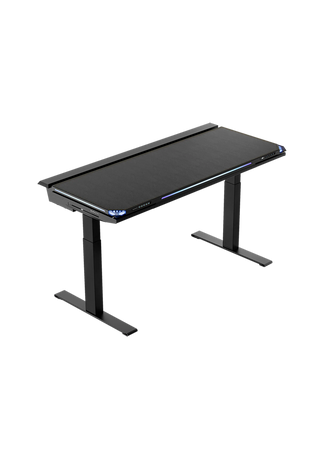
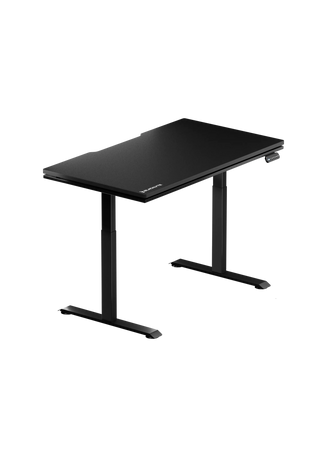
Recommended options:
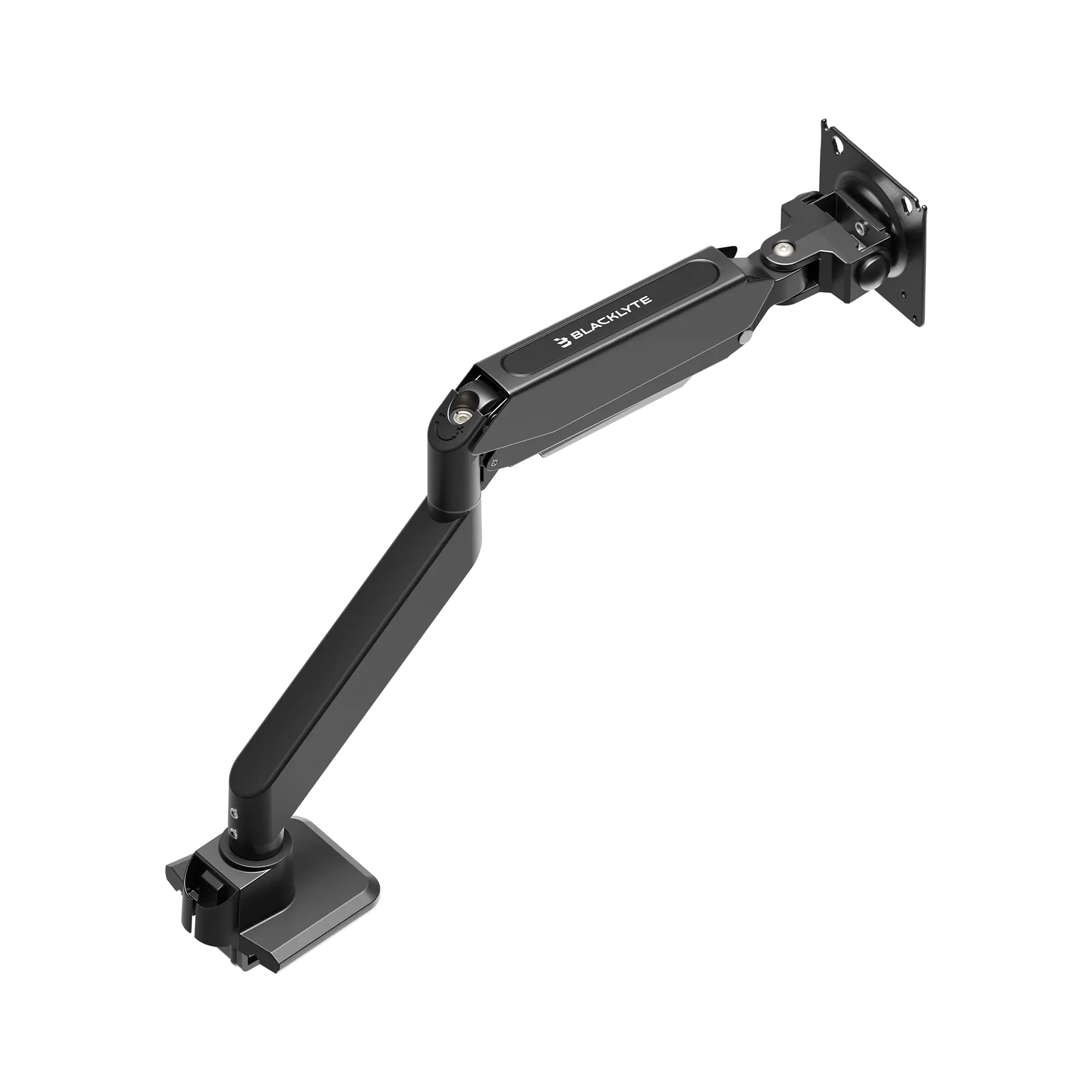
Don't Forget Your Monitor Arm
One reason many gaming setups end up with poor monitor height is limited adjustability. A monitor arm allows you to:
- Fine-tune screen height
- Adjust viewing distance
- Reduce desk clutter
- Improve posture for different activities
Whether you're gaming, working, or editing videos, being able to reposition your monitor throughout the day helps reduce static posture.
Common Monitor Height Mistakes
Placing the Monitor on Top of the PC
While it may look clean, stacking your monitor on a desktop tower often raises it too high for proper ergonomics.
Using Decorative Monitor Risers
Many risers are designed for aesthetics rather than body mechanics. If the screen forces you to look upward, the added height isn't helping.
Copying Someone Else's Setup
Your favorite streamer may be much taller or shorter than you. Their monitor position isn't automatically right for your body.
Ignoring Chair Adjustments
Sometimes the monitor isn't the issue. Raising or lowering your chair changes your eye level, which affects ideal monitor placement.
A Better Gaming Setup Starts With Balance
Comfort during long gaming sessions isn't about a single product. It's about how every component works together.
A balanced setup includes:
- A supportive ergonomic gaming chair
- Proper monitor height
- Adjustable armrests
- Correct desk height
- Comfortable keyboard and mouse placement
- Regular posture changes throughout the day
When each element supports your natural posture, your body spends less energy fighting unnecessary strain and more energy staying focused on your game.
Key Takeaways
If your neck hurts after gaming, your monitor height deserves just as much attention as your chair. The best monitor height for gaming places the top of the screen at or just below eye level, allowing your head to remain in a relaxed, neutral position.
Combined with an ergonomic gaming chair that supports your spine through adjustable lumbar support, armrests, and reclining positions, proper monitor placement creates a healthier setup for gaming, remote work, and content creation alike.
If you're upgrading your workspace, pairing an ergonomic chair with an adjustable monitor arm is one of the simplest ways to improve comfort during long sitting sessions.