











You've probably heard that gaming chairs are designed for comfort and support — but here's the thing most people skip: the chair itself is only half the equation. How you sit in it is the other half, and it's the part that actually determines whether you feel great after a three-hour session or reach for a heating pad.
Back pain, neck stiffness, and shoulder tension are incredibly common among gamers, and the majority of the time, the culprit isn't a bad chair — it's a bad setup. Seat too high, lumbar in the wrong position, armrests doing nothing, monitor at the wrong angle. These small misalignments compound over hours and sessions until your body starts sending you signals you can't ignore.
This guide walks you through exactly how to sit in a gaming chair to protect your spine, reduce fatigue, and actually get the most out of the ergonomic features your chair was engineered to provide. Whether you're brand new to ergonomic seating or you've had a gaming chair for years and suspect you've been using it wrong, this is where you get it right.
Why Your Sitting Position Actually Matters
Sitting feels passive, but your body is working the entire time. When your posture is off — even slightly — certain muscles are chronically tensed while others are completely disengaged. The result is a kind of low-grade physical stress that builds quietly. You don't feel it after 20 minutes. You feel it after three weeks, when your lower back has started aching every morning, or your neck cramps up halfway through a ranked match.
The spine has three natural curves: the cervical curve in your neck, the thoracic curve in your mid-back, and the lumbar curve in your lower back. Good sitting posture means keeping those curves roughly in their natural shape. Slouching collapses the lumbar curve and rounds the thoracic spine, putting significant pressure on the discs between your vertebrae. Craning your neck forward toward a monitor — known as "tech neck" — adds several extra kilograms of effective load on your cervical spine for every inch your head moves forward. These aren't abstract concerns. They're the physical reality behind why so many gamers end up with chronic discomfort.
A well-engineered gaming chair gives you the tools to support those natural spinal curves. But those tools only work when the chair is set up correctly — and when you're actually using the posture the chair is designed for.
Before You Start Adjusting: Know Your Chair
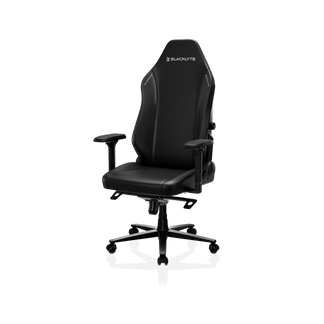
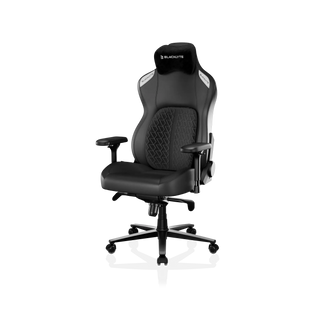
Different gaming chair models offer different adjustment systems, and knowing what's on your chair helps you use it properly. Blacklyte's gaming chair lineup, for example, spans three distinct tiers — the premium Kraken Pro, the flagship Athena Pro, and the entry-level Athena — each with purpose-built ergonomic systems.
The Kraken Pro features a built-in floating lumbar system with front-and-back fine-adjustment and lock, 4D armrests, and an aluminum alloy base for added durability. The flagship Athena Pro steps up to a built-in 4-way adjustable lumbar (height and depth), a memory foam seat surface infused with bamboo charcoal and silver ions over a contour-foam core, 4D armrests, and an aluminum alloy base. The Athena ships with an external lumbar pillow that sits against your lower back, 4D armrests, and an aluminum alloy 5-star base. All three recline from 90° to 149°. Understanding which lumbar system your chair uses is important before you start adjusting — because the technique differs.
If you're still deciding which chair best fits your body and session style, the chair comparison page is a useful starting point.
Step-by-Step: How to Sit in a Gaming Chair Correctly
Work through these adjustments in order. Each one builds on the last, and jumping ahead often means you end up readjusting everything anyway.
Step 1 – Set Your Seat Height First
Seat height is the foundation. Sit all the way back in the chair so your back is against the backrest, then use the Class 4 hydraulic gas piston lever to adjust until your feet rest flat on the floor with your knees at roughly a 90-degree angle. Your thighs should be roughly parallel to the floor — not angled sharply up or down. If your feet are dangling or your knees are pushed above hip level, nothing else you adjust will put your spine in the right position. A footrest is a legitimate fix if your desk height makes the ideal seat height impossible.
Step 2 – Dial In Your Lumbar Support
Lumbar support is the most important ergonomic feature in a gaming chair — and the most commonly misused. The lumbar support should sit in the curve of your lower back, roughly at the belt line, pressing gently inward to prevent your lower back from rounding. It should feel like gentle support, not like something is pushing you forward aggressively.
If you have the Kraken Pro, use the front-and-back fine-adjustment to tune how much the built-in floating lumbar presses against your back, then lock it in place. With the Athena Pro, you have both height and depth control — adjust the height first so the support lands at your lumbar curve, then tune the depth until your lower back feels naturally supported without strain. If you're using the Athena's external lumbar pillow, position it so it fills the natural curve of your lower back and use the attached strap to secure it at the right height.
Step 3 – Position Your Armrests
All Blacklyte chairs ship with 4D armrests across the full lineup, giving you height, width, depth, and pivot adjustment. The goal is to position your arms so your shoulders are completely relaxed — not shrugged up, not reaching down. Your elbows should rest comfortably at roughly a 90-degree bend when your hands are at keyboard or controller position. Armrests that are too high hike your shoulders up; too low and you're still leaning forward to reach support. Once the height is right, adjust the width and angle so your forearms rest naturally without any rotation in your wrists or elbows.
Step 4 – Find Your Recline Sweet Spot
A lot of gamers sit bolt upright at 90 degrees thinking that's the "correct" posture, but research into spinal loading actually suggests a slight recline — around 100–110 degrees — reduces pressure on the lumbar discs more effectively than a perfectly vertical position. Blacklyte chairs recline from 90° to 149°, so you have plenty of range to experiment. For active gaming, 100–110 degrees is a solid target. For watching replays or relaxing between queues, leaning further back is fine. The tilt mechanism uses a frog-type design with adjustable tilt tension, so you can also dial in how much resistance you want when rocking slightly — which helps micro-movement, which is good for circulation.
Step 5 – Adjust the Headrest or Neck Pillow
Once your back is in position, your head should follow. Position the headrest or neck pillow so it supports the natural curve of your cervical spine (the back of your neck), not just the back of your skull. Your ears should be roughly in line with your shoulders when viewed from the side. If you find yourself pushing your head forward to see the screen even with the headrest in position, that's a cue that your monitor needs to move — not that you need to crane your neck harder.
Step 6 – Check Your Monitor Distance and Eye Level
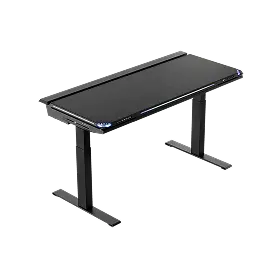
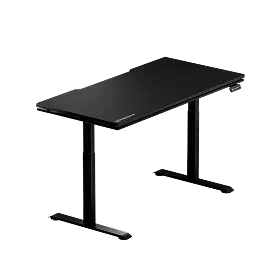
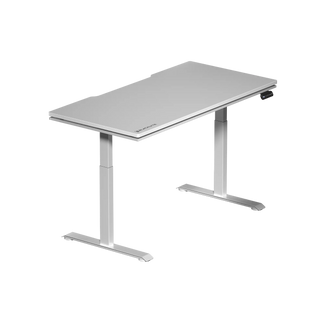
Your chair setup and your desk setup are interconnected. With your back properly against the chair, your monitor should be roughly an arm's length away, with the top of the screen at or just below eye level. If the screen is too low, you'll naturally tuck your chin and round your upper back. If it's too far to the side, you'll rotate your neck for hours. A height-adjustable desk makes this calibration significantly easier — Blacklyte's Atlas and Atlas Lite Standing Desks let you dial in the exact surface height to complement your chair position, rather than forcing you to compromise one for the other.
Common Sitting Mistakes Gamers Make (and How to Fix Them)
Even with a great chair and good intentions, a few habits tend to creep in over long sessions. Here are the most common ones and how to address them:
- Sitting on the edge of the seat. This bypasses the lumbar support entirely and puts all the load on your lower back. Scoot back until your back is fully in contact with the backrest.
- Letting the chair back go fully upright and ignoring the recline. A rigid 90-degree position increases lumbar disc pressure. Dial in a slight recline and let the chair work.
- Resting wrists on the desk while using the keyboard. This compresses the carpal tunnel. Float your wrists slightly and let the armrests take the weight of your forearms instead.
- Crossing legs or sitting with one leg tucked under. This tilts your pelvis asymmetrically and twists your spine over time. Both feet on the floor, always.
- Leaving lumbar support in the wrong position. If the lumbar feels uncomfortable, the instinct is to lean away from it — but the fix is to reposition it, not ignore it. Adjust until it feels like natural support rather than pressure.
- Tensing your shoulders during intense moments. It's involuntary, but check in with your shoulders periodically. Drop them, roll them back, and make sure your armrests are actually catching your arm weight.
Most of these mistakes are easy to correct once you're aware of them. The harder part is building the habit of noticing them during play, when your attention is elsewhere.
The One Thing No Chair Can Do for You
Here's the honest truth about ergonomic seating: even the best gaming chair on the market can't fully compensate for sitting still for six hours without moving. The human body is designed for motion, and static posture — no matter how technically correct — creates muscle fatigue and circulatory issues over time. The solution isn't to sit perfectly for six hours; it's to sit well and move regularly.
A practical approach is the 30/5 rule: every 30 minutes of sitting, take five minutes to stand, stretch, or walk. If you're deep in a match and can't step away, even shifting your recline angle slightly, rolling your shoulders, or using the tilt tension adjustment to rock gently can help. Pairing your chair with a height-adjustable standing desk makes this even easier — you can alternate between sitting and standing without breaking your workflow or your game setup. For more on building a sustainable setup, Blacklyte's Gaming Hub covers ergonomics specifically for gaming sessions, while the Ergonomics page goes deeper on workspace optimization for productivity and long-form work.
Does Your Chair Actually Support Good Posture?
Correct sitting technique matters, but it's only achievable if your chair has the adjustability to accommodate your body. A chair that doesn't let you properly position lumbar support, or armrests that only go up and down, limits how well you can follow the guidance above. This is where the engineering behind a chair translates directly into real-world posture outcomes.
Blacklyte's chairs are built specifically around this philosophy. High-density cold-cure foam provides seat support that holds its shape under sustained use rather than compressing flat over time. The built-in lumbar systems on the Kraken Pro and Athena Pro eliminate the guesswork of positioning an external pillow. The 4D armrests available across every model give you the fine-tuned positioning that cheaper single-axis armrests simply can't replicate. And the Class 4 hydraulic gas piston provides smooth, reliable height adjustment that stays exactly where you put it.
If you're unsure which chair fits your body type and session style, the chair comparison tool breaks down every model side by side, and the full gaming chair lineup is available to browse with detailed specifications for each series. Every Blacklyte chair comes with fast free shipping, a 30-day easy return window, and warranty coverage extendable up to 5 years — so there's room to make the right call without pressure.
Sit Smarter, Play Longer
Knowing how to sit in a gaming chair correctly isn't about following a rigid set of rules — it's about understanding what your body needs during long sessions and giving your chair the chance to actually deliver it. Seat height sets the foundation, lumbar support keeps your spine in its natural curve, armrests take the load off your shoulders, and a slight recline reduces disc pressure more than an upright position ever will. Put those pieces together, add regular movement breaks, and the difference in how you feel after a session is significant.
The chair is the tool. The setup is the skill. Get both right, and you're not just protecting your back — you're giving yourself a genuine performance edge by staying physically comfortable and mentally focused for longer.
Ready to Build a Posture-Perfect Setup?
Explore Blacklyte's full range of ergonomic gaming chairs and height-adjustable standing desks — engineered to support the way you actually play.


