








Gaming Desk Setup Inspiration: Single, Dual, and Ultrawide Layouts
Your gaming desk setup is more than a place to park your keyboard and monitor — it's the command center where performance, comfort, and personal expression all come together. Whether you're grinding ranked matches, streaming to thousands, or pulling double duty between work and play, the layout you choose shapes everything from your reaction times to how your back feels after a long session. And yet, most people spend hours agonizing over GPU benchmarks and skip right past the setup fundamentals that actually affect their daily experience.
This guide breaks down three of the most popular gaming desk configurations — single-monitor, dual-monitor, and ultrawide — with practical inspiration, ergonomic guidance, and gear recommendations to help you build a space that looks incredible and performs even better. Whether you're starting from scratch or leveling up an existing setup, there's something here for every stage and every budget.
Why Your Desk Setup Matters More Than You Think
It's tempting to treat your desk setup as purely aesthetic — a backdrop for streaming thumbnails or social media flexes. But the reality is that your layout has a direct impact on performance and physical health. A poorly positioned monitor forces your neck forward. A desk that's too shallow cramps your arms and raises your shoulders. The wrong chair turns a two-hour session into a recovery day. Every decision you make about layout, furniture, and accessories compounds over time, for better or worse.
The good news is that getting it right doesn't require a Hollywood budget. It requires understanding what each type of setup is actually optimized for, and then building toward that intentionally. The three most popular configurations — single, dual, and ultrawide — all have distinct strengths, and knowing which one fits your workflow is the most important decision you'll make before buying anything.
Single Monitor Setups: Focused, Clean, and Surprisingly Powerful
There's a reason professional esports players overwhelmingly use single-monitor setups. When every millisecond counts, eliminating peripheral distractions — including a second screen in your sightline — keeps your focus locked where it needs to be. A single-monitor configuration is the cleanest layout you can build, and with the right monitor size and positioning, it handles the vast majority of gaming and creative use cases without compromise.
Ideal Use Cases
- Competitive gaming — FPS, MOBA, and battle royale titles where split-second focus is non-negotiable
- Compact spaces — apartments, dorms, or shared rooms where desk real estate is limited
- Budget-conscious builds — fewer displays mean more budget for a better GPU, peripherals, or chair
- Clean aesthetic builds — minimalist setups that look polished with minimal effort
Layout Tips for Single-Monitor Setups
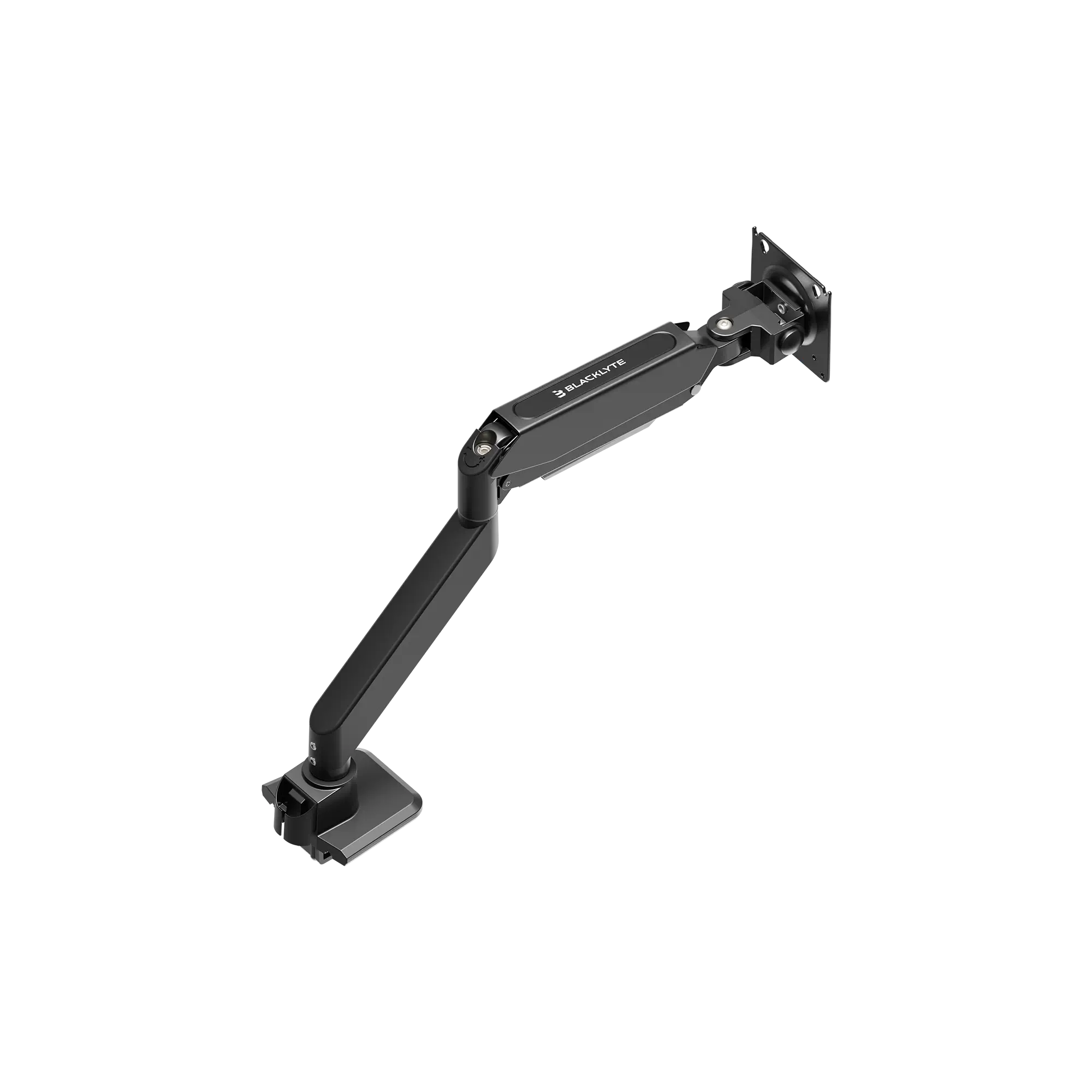
Position your monitor so the top edge sits at or just below eye level, with the screen roughly an arm's length away from your seated position. A monitor arm is one of the best investments you can make for a single-monitor setup — it frees up desk surface, lets you dial in the exact height and tilt, and makes cable routing dramatically cleaner. If you're gaming competitively, prioritize refresh rate (144Hz minimum, 240Hz if your GPU can push it) over panel size.
For desk depth, aim for at least 60cm (roughly 24 inches) to give your keyboard and mouse comfortable placement without forcing your arms to reach. Anything shallower tends to compress your posture and push you too close to the display.
Dual Monitor Setups: The Multitasker's Best Friend
Dual-monitor setups have become the default for streamers, content creators, and anyone who balances gaming with productivity. The appeal is obvious: one screen for your game, one for OBS, Discord, chat, or a browser. What people underestimate is how much planning a dual-monitor layout actually requires to avoid neck strain, awkward ergonomics, and a cluttered visual mess.
Ideal Use Cases
- Streaming and content creation — manage your stream dashboard without alt-tabbing mid-game
- Work-from-home hybrid setups — game in the evening, work with extended screen space during the day
- Video editing and music production — spread timelines and tool panels across two displays
- MMO and strategy gamers — keep wikis, maps, or communication windows open and visible
Layout Tips for Dual-Monitor Setups
The most common mistake in dual-monitor setups is treating both screens equally. Unless you genuinely split your attention 50/50, designate one display as your primary and angle your chair to face it directly. The secondary monitor should sit to the side at a slight angle, not perfectly parallel — this reduces how far you need to rotate your neck for quick glances. Matching monitors in size and color profile makes the transition between screens feel seamless, but it's not strictly required if the displays serve different functions.
Desk width matters significantly here. A dual-monitor setup typically requires at least 120–150cm (47–59 inches) of usable surface width to avoid cramping. If your current desk doesn't accommodate this, it's worth considering an upgrade before investing in a second display — a narrow desk with two monitors is one of the most ergonomically punishing configurations you can build.
Ultrawide Setups: Immersion Without Compromise
Ultrawide monitors (typically 34 inches at 21:9, or 49-inch super-ultrawides at 32:9) offer a compelling middle ground: the expanded field of view and multitasking real estate of a dual-monitor setup, with none of the bezel gap, neck rotation, or cable complexity. For single-player RPGs, racing sims, flight simulators, and cinematic experiences, an ultrawide fundamentally changes how a game feels to play. It's also increasingly viable for productivity, with most modern operating systems supporting intuitive window snapping across the wide canvas.
Ideal Use Cases
- Immersive single-player gaming — open-world, RPG, racing, and simulation titles that support 21:9 or wider
- Creative professionals — video timelines, multi-track audio, and design layouts benefit enormously from horizontal screen space
- Streamlined dual-purpose setups — game on one half, manage tools on the other, all on one screen
- Aesthetic-first builds — a single curved ultrawide creates a commanding visual statement on any desk
Layout Tips for Ultrawide Setups
Curved panels — most commonly at 1800R or 1500R curvature — are strongly recommended for ultrawides because they wrap the display edges into your natural field of view, reducing the eye movement needed to scan from edge to edge. Position the center of the panel at eye level and ensure you're sitting close enough that the edges remain comfortably readable without leaning. For super-ultrawide (49-inch) displays specifically, desk depth becomes critical: you'll want at least 70–80cm of depth to avoid the display dominating your field of vision at close range.
The Desk Foundation: Choosing the Right Surface for Any Layout
No setup — regardless of how premium your peripherals are — performs well on an inadequate desk. Surface area, build quality, cable management, and adjustability all affect both your ergonomics and your setup's long-term usability. For gamers who also work from home, height adjustability is especially valuable: being able to shift between sitting and standing throughout the day has well-documented benefits for energy, focus, and spinal health.
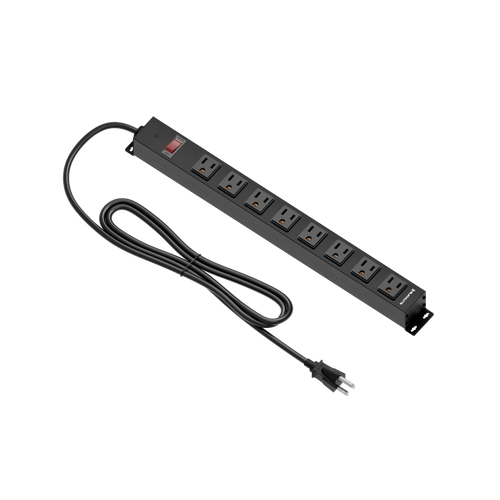
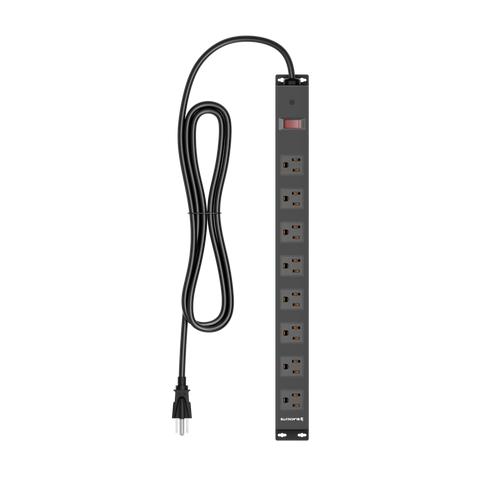
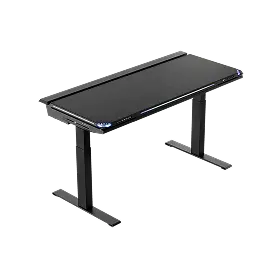
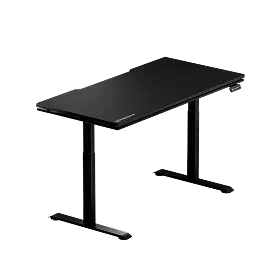
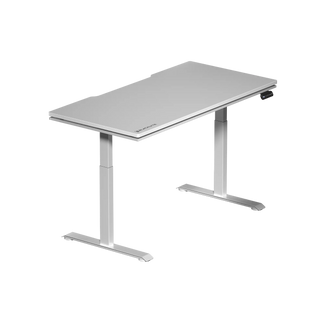
Blacklyte's Atlas Desk lineup was designed with exactly these demands in mind. Both the Atlas Desk and Atlas Lite Standing Desk offer motorized height adjustment, integrated cable management channels, and built-in electrical sockets, while the Atlas adds a magnetic surface and smart LED lighting controllable via the proprietary Atlas Driver software. The integrated power strips mean fewer cable runs across your desk surface — something that makes an enormous visual difference in ultrawide and dual-monitor configurations where cable discipline is especially challenging. If you're comparing options, Blacklyte's desk comparison tool breaks down both models side by side.
Ergonomics and Seating: The Part Most Setups Get Wrong
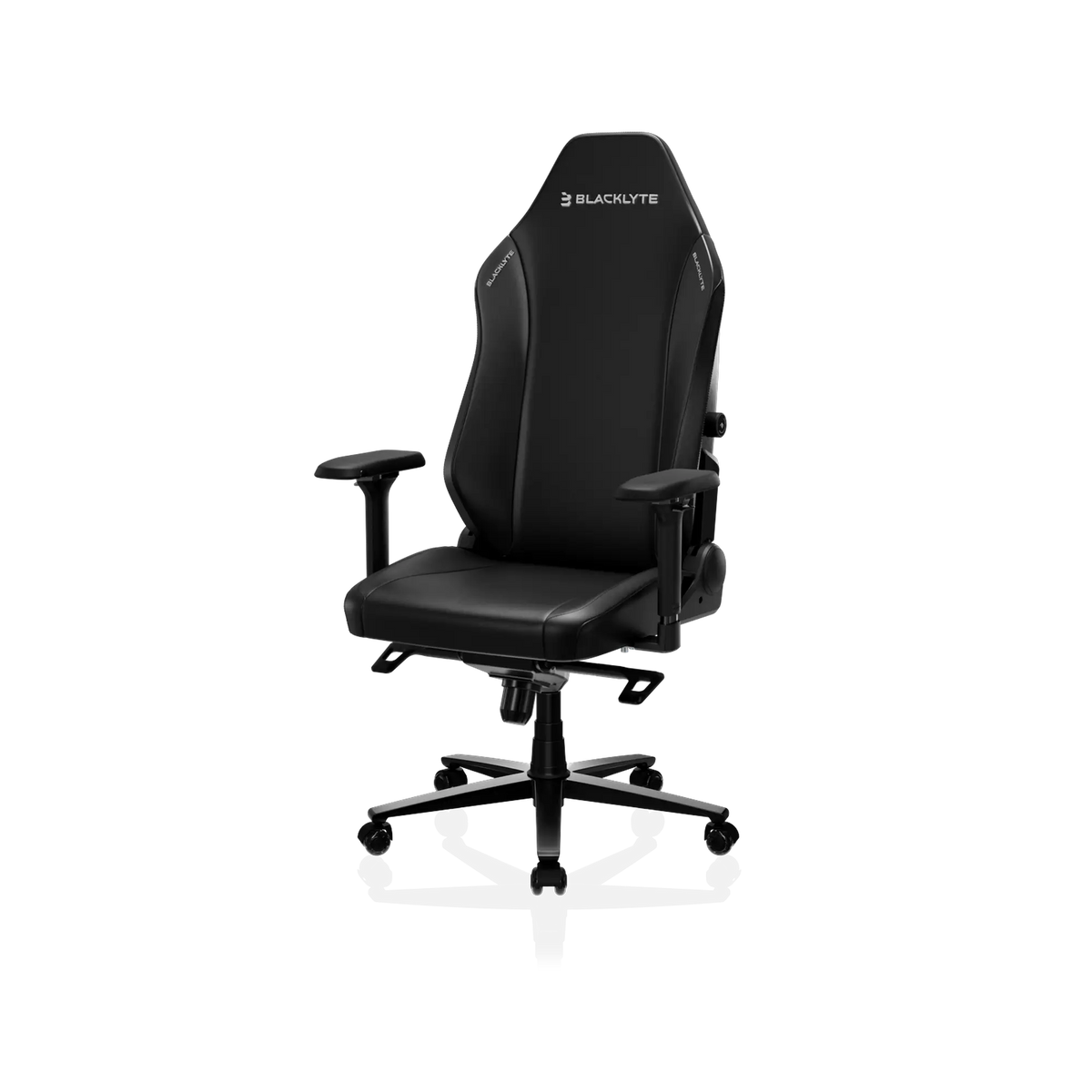
The most visually spectacular setup in the world falls apart if the chair is wrong. Poor seating is the single most common contributor to gaming-related back pain, neck tension, and long-term posture problems — and it's also one of the most overlooked elements in setup planning. When you're choosing a chair, the key ergonomic factors are lumbar support quality, seat cushioning quality, recline range, and armrest adjustability. All of these affect how your body positions itself over hours of use.
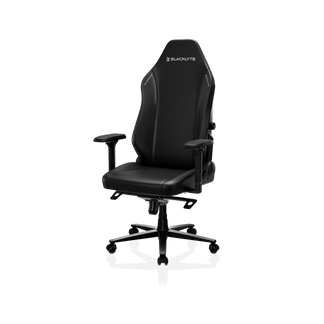
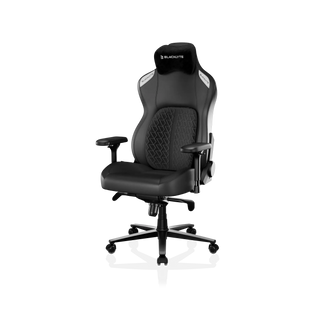
Blacklyte's gaming chair lineup spans three series, each engineered with a distinct user profile in mind. The Kraken Pro sits in the premium tier with a built-in floating lumbar that offers front/back fine-adjustment and lock, high-density contour foam seating, and an aluminum alloy base. The Athena Pro is Blacklyte's flagship: it features a built-in 4-way adjustable lumbar system (adjustable both up/down and front/back), a memory foam seat over a contour-foam core infused with bamboo charcoal and silver ions, an aluminum alloy 5-star base, and a Class 4 hydraulic gas piston. The Athena is Blacklyte's entry-level series, featuring an external lumbar pillow, contour foam seating, and an aluminum base — a solid starting point for gamers building their first serious setup. All three series ship with 4D armrests across the full lineup and recline from 90° to 149°, accommodating everything from focused upright gaming to relaxed reclined browsing.
Not sure which chair fits your setup? Blacklyte's chair comparison page puts all three models side by side, and the Ergonomics guide offers deeper guidance on dialing in your seating position for both work and play.
Finishing Touches: Lighting, Cable Management, and Accessories
Once your monitor layout and core furniture are sorted, the finishing layer is what separates a functional setup from an exceptional one. Lighting, cable control, and desk accessories do more than look good — they reduce visual fatigue, keep your workspace organized, and make the setup easier to maintain over time.
Lighting
Bias lighting (LEDs mounted behind your monitor or along the back edge of your desk) reduces the contrast between your screen and the surrounding environment, lowering eye strain during long sessions. For ultrawide and dual-monitor setups, a rear LED strip that matches your screen's ambient color output creates a cohesive visual effect that's both practical and aesthetically compelling. Blacklyte's Atlas Desk includes integrated smart lighting controls through the Atlas Driver software, which lets you synchronize your desk lighting with your setup's overall color scheme without running additional cables.
Cable Management
This is where dual-monitor and ultrawide setups most commonly fall apart visually. With more displays come more power cables, display cables, and peripheral connections — and without a routing plan, the result is a tangled mess that undermines even the most premium gear. Use cable raceways or under-desk trays to consolidate runs, velcro ties to group cables by destination, and cable clips along desk edges to keep everything anchored and out of sightlines. The integrated cable management on Blacklyte's Atlas Desk handles a significant portion of this automatically, routing cables through dedicated channels built into the desk frame.
Accessories Worth Prioritizing
- Monitor arm(s) — essential for correct height and tilt adjustment regardless of layout
- Extended desk mat — unifies the aesthetic and protects your surface
- Headphone stand or hook — keeps your most-used peripheral accessible and off the surface
- KVM switch — for dual-monitor or hybrid work/play setups with multiple devices
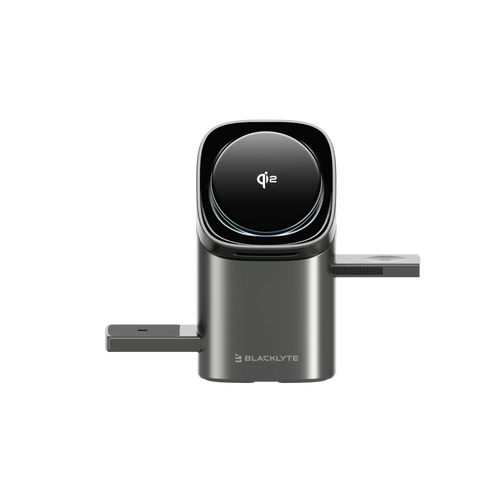
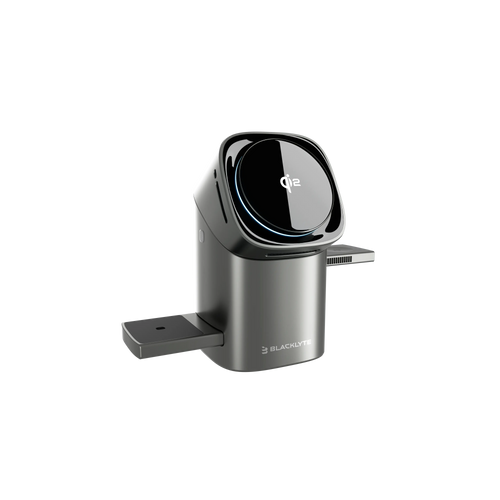
Blacklyte's accessories collection includes a curated selection of add-ons designed to complement their desk and chair lineup, so you can build a cohesive setup without hunting across multiple brands.
Building Your Setup: A Layout-by-Layout Action Plan
With all the individual elements covered, here's a straightforward decision framework based on your primary use case and available space:
- Define your primary use case first. Competitive gaming? Single monitor wins. Streaming or content creation? Dual monitor is the standard. Immersive single-player or hybrid productivity? Ultrawide is worth serious consideration.
- Measure your space before choosing a layout. Dual-monitor setups need desk width. Ultrawide setups need desk depth. Don't choose a configuration your space can't properly support.
- Invest in the desk and chair before peripherals. These are the foundation. A great monitor on a poor desk, or long sessions without proper seating, costs you more in comfort and health than any peripheral upgrade saves you in performance.
- Plan your cable management from day one. It's far easier to route cables correctly during the build than to untangle and reroute a completed setup later.
- Add lighting and accessories last. Once the functional core is solid, these finishing layers have maximum visual impact and don't compete with ergonomic decisions.
Final Thoughts
The best gaming desk setup isn't the most expensive one — it's the one built around how you actually play, work, and live. Whether you're drawn to the focused simplicity of a single-monitor configuration, the productive versatility of a dual-screen layout, or the cinematic immersion of an ultrawide display, every great setup starts with the same foundation: the right desk, the right chair, and a layout designed with both performance and ergonomics in mind.
Blacklyte's full lineup of standing desks and gaming chairs is engineered to support exactly that — with ergonomic features developed over 20 years of industry expertise, trusted by over 200,000 gamers across 50+ Countries & Regions, and backed by esports partnerships with organizations including tournament organizer BLAST, Team Liquid, Fnatic, and more. Explore the Gaming Hub for deeper ergonomic guidance, or browse all products to start building your ideal setup today.
Ready to Build Your Dream Setup?
Our team is here to help you find the perfect desk, chair, and accessories for your layout — whether you're starting fresh or upgrading piece by piece.
Contact Us